- Home
- Minecraft Avatar Maker
FREE TOOL
Minecraft Avatar Maker
Turn a Minecraft skin PNG, Java username, or a character you build from scratch into a Face, Bust, or 3D head PFP. Download square sizes for Discord, YouTube, Twitch, and X, make a spinning GIF or group picture, all free with no sign-up or watermark.
Preparing your avatar…
Keep important details near the centre.
Spinning GIFProfile animation · 256×256 · opaque background.
At real size
30 px
36 px
40 px
64 px
98 px
160 px
PNG: Discord or server icon · 1024×1024 · opaque background.
Minecraft skin: Java/Bedrock · 64×64 · transparent pixels retained.
The pack has Discord 256, Twitch 256, X 400 and YouTube 800 px. YouTube’s help page says it draws the picture at 98 px, so 800 is our size.
Group picture
0/6 skinsAdd or find at least one skin to enable the group download.
One horizontal group PNG · 256 px tall × 256 px per skin · selected background.
Team pack
Paste up to 6 Java usernames, separated by commas or new lines. Everyone gets the same style, background and corners.
Java Edition usernames only. Duplicate names are removed.
One 1024×1024 PNG per successful username.
One horizontal PNG at 256 px tall, using the selected background.
Build your character
Want more detail? Edit this character in the Skin Maker and paint every pixel.
Made in your browser. Nothing is uploaded, there is no watermark and you don’t need an account.
SHEET No.01 / MADE WITH THIS TOOL
Example avatars
Every example below was made with this tool from skins we drew ourselves. Click one to load its settings, then swap in your own face.
Spawn regular
Bust · Grass pattern · RoundNight builder
3D head · Transparent · RoundShopkeeper
Bust · Dirt pattern · RoundTimer icon
Face · Dark · RoundChannel face
Bust · Light blue · RoundMod badge
Face · Lime · RoundSquad set
Face · Light blue · RoundBest friends
Face · Light blue · RoundServer crew
Face · Lime · RoundHOW TO
How to make a Minecraft avatar
- 01
Choose how to start.
Upload a skin, enter a Minecraft username, or build a character from skin tone, hair, eyes and a top.
- 02
Pick a style and background.
Face, Bust or 3D head. Then a flat colour, a pattern or transparent. Round or square corners.
- 03
Download.
Get one PNG at 1024 px, or the ZIP with all four platform sizes. If you built a character, you can also download it as a 64×64 skin and wear it in the game.
SHEET No.01 / THE THREE LOOKS
Minecraft avatar maker styles, and when each one works
Face. The flat 8×8 front of the head, scaled up with sharp pixels. It reads clearly even at 32 px, so it is the safest pick for small chat icons. The hat layer sits on top, so glasses, masks and hair fringes still show.
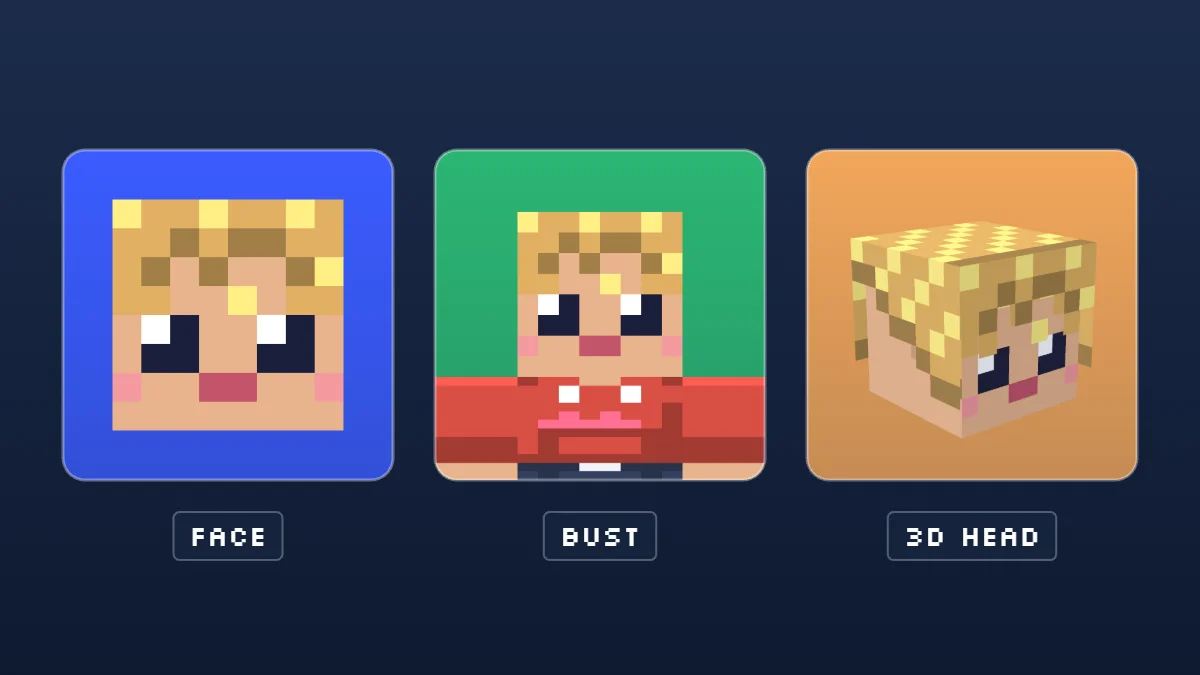
Bust. Head and shoulders, front view. You see the top colour and any jacket detail, so people recognise you by outfit as well as face. Good for profile pages that show the picture larger, like a YouTube channel or a forum.
3D head. The head turned slightly, with the top and one side visible and soft shading. It looks like an item in your hotbar. It stands out in a member list, but the side faces shrink first, so keep it for sizes of 128 px and up.
SHEET No.02 / STYLE IDEAS
Styles people make, and how to get them
The YouTuber look. A big Bust or 3D head, a bright flat colour behind it, and nothing else. It reads as “channel logo” at a glance. Choose a colour that is not the platform's own interface colour. On YouTube, Light blue and Lime stand out well against the interface.
The isometric head. The 3D head shows the top and one side, so the head looks like a cube sitting on a table. It is the closest match to the item icons you see in your hotbar. It needs space around it, so leave the background plain and keep the size at 128 px or larger.
Render on a pattern. Instead of a flat colour, use the Grass or Dirt background. Grass suits survival, dirt suits caves and mines. A pattern adds interest, but it also adds noise. If your avatar will be shown at 32 px, go back to a flat colour.
The cut-out on transparent. Choose Transparent and download the PNG. Place it over your own artwork: a screenshot, a banner, a thumbnail. This is the best choice when the avatar is one part of a larger design.
Try each with your own skin and keep the one you can still read in the smallest circle of the real-size strip.
Why small avatars fail
Most avatars look good large and bad small. Three things cause it.
- Too many colours. At 32 px a face has only a few pixels for each feature. A skin with fine shading turns to mud. Choose a background that sits far from the skin's colours.
- Low contrast. A brown-haired skin on a brown background disappears. If hair and background are close, pick a background from the other end of the swatches, such as Light blue for dark hair.
- Detail near the edge. Circles cut the corners. Anything near the edge, like a hat brim or a sword, is lost. Keep what matters inside the middle two thirds.
Use the At real size strip under the avatar to check the crop before downloading.
SHEET No.03 / CHOOSE A LOOK
Minecraft avatar maker for Discord, YouTube and Twitch
Your avatar is the first thing people see in a lobby, a stream chat or a server member list. These looks match the most common ways people play.
PvP and Bedwars players
Go for Face on one of the five solid swatches. In a fast chat, a bold square face is easier to spot than a detailed scene. Add a mask or headband on the hat layer if you want a game face. Square corners feel sharper next to kill-feed text.
Try this lookSurvival SMP members
Use Bust on the Grass or Dirt pattern. Your outfit is how other members recognise you around spawn, so show the shoulders. Keep the same top colour you wear in the game, and people will match your avatar to your character on sight.
Try this lookBuilders and creative players
Try the 3D head on a transparent background, then drop it onto a screenshot of your best build. The angled head reads like a signature in the corner. If you post build timelapses, use the same avatar on every thumbnail.
Try this lookRoleplay servers
Choose Build a character instead of using your everyday skin. Give each role its own hair and top, then download each as a skin too. You get a matching avatar and a wearable skin from one design.
Try this lookSpeedrunners
Keep it plain: Face, one dark colour, round corners. Leaderboards and run timers show icons tiny, and a simple face stays readable at 32 px.
Try this lookMinecraft YouTube and Twitch channels
Use the Bust at full size for the channel picture, and the Face for chat and small overlays. Same colours on both, so viewers connect them. Download the ZIP once and you have every size the channel needs.
Try this lookDiscord server staff
Give the staff team one shared background colour and let each person keep their own face. Members learn that Lime means moderator without a role tag. See the team tips further down.
Try this lookTeams, clans and friend groups
Pick one style and one pattern for everyone, then change only the face. A row of matching avatars in a member list looks like a team.
Try this lookSHEET No.04 / DOWNLOAD SIZES
Avatar sizes for Discord, YouTube, Twitch and X
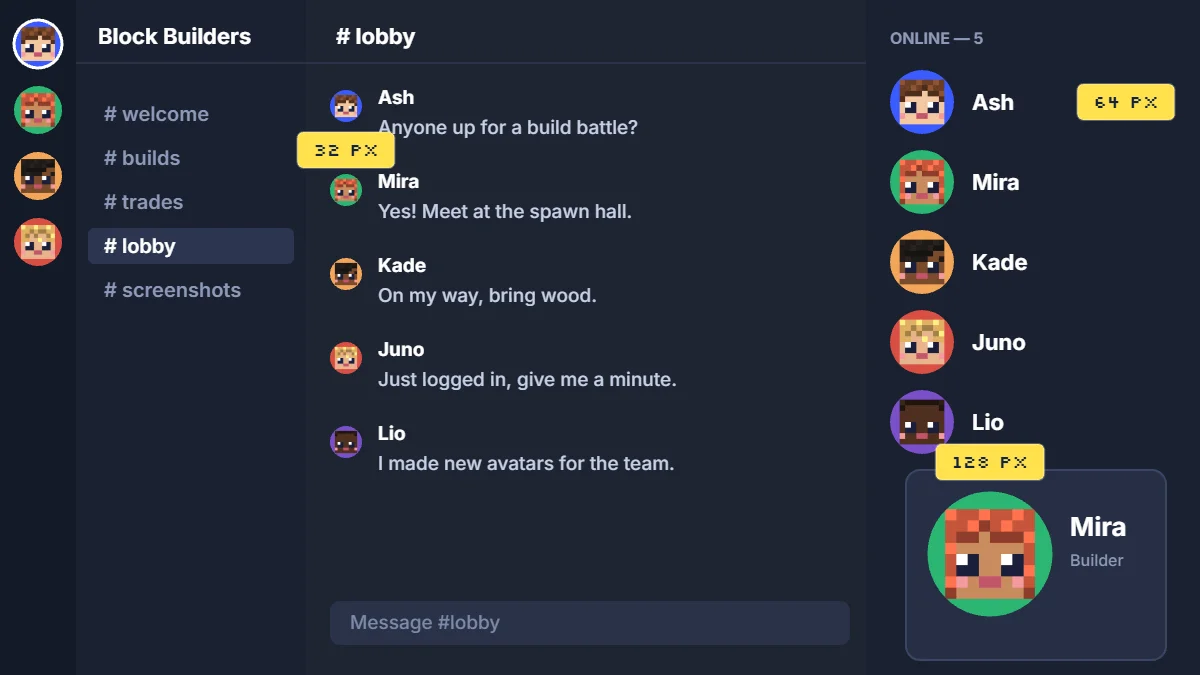
At real sizeAvatars are rarely seen at upload size. Face keeps hair and skin tone clearest at small sizes; Bust adds clothing colour when shown larger; the 3D head reads as a Minecraft cube, with its eyes clear around 64 px. Keep hair and skin distinct from the background, and leave important details in the middle because circular crops cut the corners. Transparent backgrounds work well over your own artwork; a solid colour gives a profile picture a clear edge.
Use the six-size preview under the tool to compare how each style reads before downloading.
The ZIP contains a square PNG for each platform. Official statements checked 2026-11-14.
| Platform | PixelSkinLab export | Platform guidance (official) |
|---|---|---|
| Discord | 256 × 256 px PNG | No size published. Discord Custom Profiles |
| Twitch | 256 × 256 px PNG | Up to 256 × 256 px; max 10 MB. Twitch Account Settings |
| X | 400 × 400 px PNG | Recommended 400 × 400 px; max 2 MB. X profile photo help |
| YouTube | 800 × 800 px PNG | No upload size published; displays at 98 × 98 px. YouTube profile picture help |
SHEET No.05 / DISCORD PROFILE
Discord: server icon or your own avatar?
Discord has two pictures, and people mix them up. Your avatar is your own profile picture, shown next to your messages and in the member list. The server icon belongs to the server and shows in the sidebar of everyone who joined. You set the avatar in your own profile settings, and the icon in the server's settings.
Make them differently. An avatar sits beside a line of chat, so it needs to be readable at a tiny size: use Face, and the 256 px Discord file from the ZIP. A server icon stands alone, so you can use Bust or 3D head with a plain background. For the icon, download the 1024 px PNG and let Discord shrink it. A large square upload is the safe choice when a site does not tell you an exact size.
If you use a different background colour on each server you join, keep the same face. People will still know it is you.
SHEET No.06 / START FROM SCRATCH
Three ways to start: upload, username or build
Choose Upload a skin to use a PNG, Minecraft username to load a public skin, or Build a character to start from nothing. Pick a skin tone, a hair style and colour, eye colour, and a top. Press Shuffle for a random mix when you are stuck.
When you like it, download it twice: once as an avatar, once as a 64×64 skin. Upload the skin in the Minecraft Launcher and your character in the game matches your profile picture. Want more detail later? Open the skin in the skin maker and keep editing.
SHEET No.07 / MORE FROM ONE DESIGN
More things to make from the same avatar
Spinning head GIF
The 3D head turns once and loops. Download it as a GIF for platforms that support animated avatars.
- 256 × 256 px; 36 frames.
- Each frame lasts 0.06 seconds; one loop takes about 2.16 seconds.
- Transparent pixels are included when Transparent is selected; other backgrounds export opaque pixels.
Group picture for your team or friends
Add up to six skins for one horizontal PNG. Each member contributes a Face, with no Bust or 3D head in this export.
- Output: 256 px tall × 256 px per person wide (1–6 people means 256–1536 × 256 px).
- Format: PNG.
- Maximum: six people; the group picture uses Face only.
SHEET No.09 / PLAY TOGETHER
Making avatars for a whole team or server
- Agree on one style and one background first. Write them down in your server channel.
- Each member uploads their own skin and applies those two settings. For one shared picture, use the group picture option above.
- Use colour to show roles: one colour for staff, one for members, one for guests.
- Keep square or round corners the same for everyone; mixed shapes look messy in a list.
A worked example: a five-person build team
Say you lead a small build team on a survival server, and you want matching avatars for Discord and the team's channel.
- Pick the look. You agree on Bust, round corners and the Dirt pattern, because your team builds underground bases.
- Give roles a colour. The tool has five background swatches. Use Dark for the team lead, Lime for builders and Light blue for helpers. Everyone sees the role without reading a tag.
- Each member makes their own. They upload their own skin, apply the two shared settings and choose the swatch for their role. The faces differ, but the set looks like one team.
- Make the shared picture. Use the group picture. It puts up to six faces in one row on your chosen background. It is a wide strip, so it works well as a banner or a post, not as a square icon. For the server icon, pick one shared design instead.
- Check it small. Open the member list and see whether you can tell the five apart at 32 px. If two blur together, change one background.
When someone new joins, send them the two shared settings and the swatch for their role. That is all they need.
SHEET No.10 / SET UP YOUR PROFILE
How to upload a Minecraft avatar to each platform
Discord
Open your profile settings and upload the PNG. Discord Custom Profiles. Use minecraft-avatar-discord-256.png from the ZIP.
Official specs: PNG and GIF are supported; GIF avatars require Nitro. No upload limit or crop/transparency behavior is published there. The 256 px file is a PNG.
Twitch
Open Creator Dashboard, then Settings, Channel, then Brand and add the profile picture. Twitch Channel Page Setup. Use minecraft-avatar-twitch-256.png.
Official specs: JPEG, PNG, or GIF up to 10 MB and 256 × 256 px. The help page does not specify animation, crop, or transparency behavior.
YouTube
Open YouTube Studio, choose Customization, then Profile, and change the picture there. Use minecraft-avatar-youtube-800.png. YouTube profile picture and banner help.
Official specs: JPG, GIF, BMP, or PNG up to 15 MB; rendered at 98 × 98 px. YouTube does not accept animated GIFs for profile pictures. Crop and transparency behavior is not specified there.
X
Open your profile settings and upload the PNG. X profile photo help. Use minecraft-avatar-x-400.png.
Official specs: JPEG, GIF, or PNG up to 2 MB; recommended size is 400 × 400 px. Animated GIFs are not supported for profile photos. Crop and transparency behavior is not specified there.
TikTok
Open your profile settings and upload an image. TikTok Help Center.
Official specs: The linked help page does not publish file, size, animation, crop, or transparency requirements. TikTok is not included in the ZIP; use the 800 px YouTube PNG, which the code exports as a square image.
SHEET No.11 / NO COST
What is free
Everything on this page. No account, no watermark, and no download limit.
Uploaded skins and group pictures stay in your browser. A username lookup sends the username through our server to a public Minecraft profile service; our server caches the result for up to 30 minutes. You do not need a password.
SHEET No.12 / FAQ
FAQ
Yes. PixelSkinLab is a free Minecraft profile picture maker with no account or watermark. Upload a skin, look up a Minecraft username, or build a character from skin tone, hair, eyes and a top.
Yes. Choose Minecraft username and enter it to load its public skin. You can also upload a skin or build a character.
Pixel art blurs when an app smooths it. Our files keep sharp pixels. If a platform still blurs it, upload the larger 1024 px PNG and let the platform shrink it.
Yes. Glasses, masks and hair on the outer layer sit on top of the face. You can switch it off.
Yes. Face and 3D head look the same. In Bust, the shoulders follow the arm width of your skin.
Uploaded skins and group pictures are processed in your browser. A username lookup sends the username through our server to a public Minecraft profile service; our server caches the result for up to 30 minutes. You do not need to provide a password.
Upload a skin PNG, look up a Java username, or build a character. Choose Face, Bust, or 3D head, then download the 256 px Discord PNG from the ZIP.
Yes. Upload a Minecraft skin PNG or build a character from scratch; neither option needs a username.
Yes. Choose Transparent before downloading a PNG or GIF. The ZIP PNGs keep transparent pixels when you select that background.
Yes. Download the spinning head as a GIF. Discord GIF avatars require Nitro; X and YouTube do not support animated profile photos. Twitch lists GIF files but does not specify whether they animate.
A skin is the full character texture used in Minecraft. An avatar is a picture made from its face, bust, or 3D head for a profile.
PixelSkinLab is free to use, but that does not grant rights to a skin made by someone else. Get permission from the skin’s creator before commercial use.
SHEET No.13 / SOURCES
Sources
Checked 2026-11-14.